


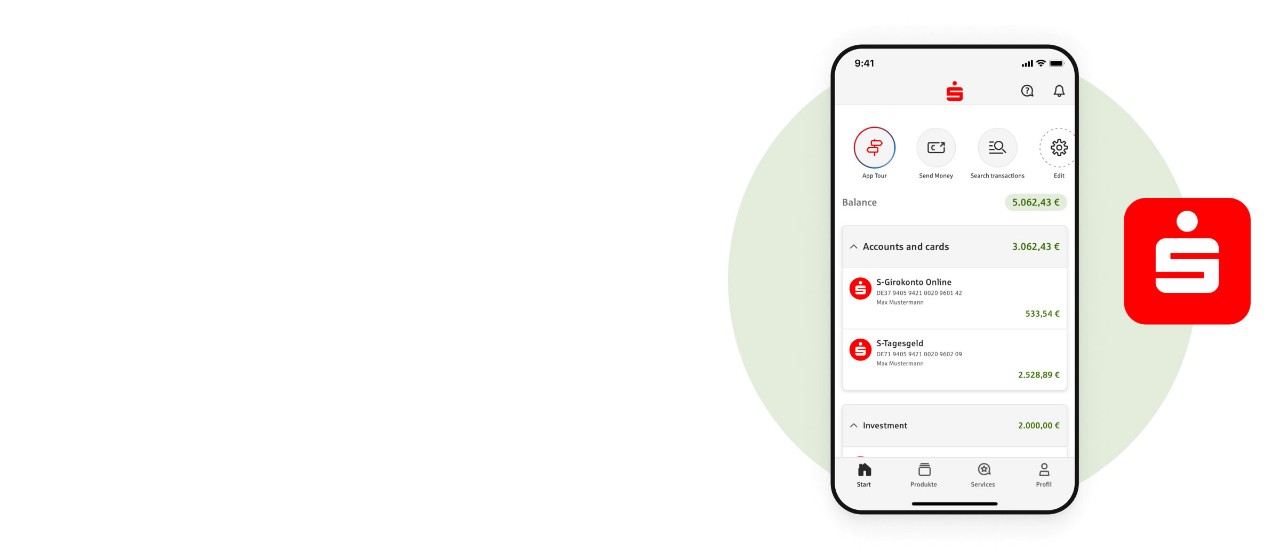
Important – before setting up the App Sparkasse:
- Please only start setting up the app when you have all of the required documents to hand.
- Please note that you will need to download and set up the S-pushTAN-App before setting up the App Sparkasse. You will need the S-pushTAN-App to verify transactions on the App Sparkasse.
Forgotten your S-pushTAN password and locked yourself out because of too many failed login attempts? Then follow the instructions under Forgotten password: Set up S-pushTAN-App again and then set up the App Sparkasse.
Do you have a new phone or tablet and want to set up the S-pushTAN-App again? Then follow the instructions under “Set up S-push TAN again – on new phone” and then set up the App Sparkasse. - What we’ll send you: If you are a new online banking customer, you’ll receive two letters by post:
- A registration letter for the S-pushTAN-App
- A letter with your online banking login details: User name/login ID and a temporary PIN
Please wait until you have received these two letters before activating the app.
To do so, you will need:
Always:

S-pushTAN-App
Download the latest version of the app, which is free, from the Apple or Google Play Store onto your phone or tablet.

App Sparkasse
Download the latest version of the app, which is free, from the Apple or Google Play Store onto your phone or tablet.
When setting the app up for the first time:

pushTAN registration letter
To set up the S-pushTAN-App, you will need your pushTAN registration letter and your Sparkasse account must have been enabled for pushTANs. If you didn’t receive this letter, please contact your Sparkasse.
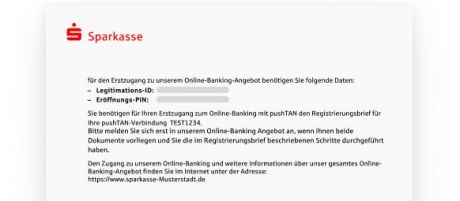
Existing online banking account or initial online banking login details
In order to be able to use the App Sparkasse, you will need an online banking account or a set of initial login details for logging into online banking for the first time. You will also need your online banking login details to verify your identity on the S-pushTAN-App.
When setting up the app again, e.g. on a new phone:
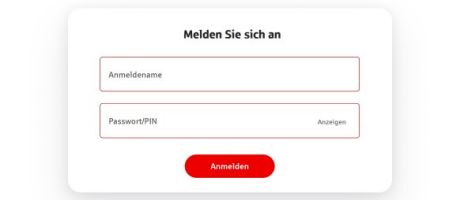
User name and online banking PIN
If you are installing the App Sparkasse on a new device, you will need your online banking user name and PIN.
How to:
Setting up pushTAN for the first time – with registration letter
The following guide contains step-by-step instructions for setting up the S-pushTAN-App with a registration letter. The important thing is to set up the S-pushTAN-App first. You will need the app to verify transactions on the App Sparkasse.
Do you have a new phone or tablet and want to set up the S-pushTAN-App again? Then follow the instructions under “Set up S-pushTAN-App again – on new phone”. If you want to reinstall the S-pushTAN-App, please follow the instructions under “Set up S-pushTAN-App again – after reinstall”.
Note: These instructions are an example only and may slightly differ depending on your mobile end device or bank.
Setting up the App Sparkasse
The App Sparkasse is intuitive and easy to use. As is the following guide, which contains step-by-step instructions for setting up the App Sparkasse.
Note: These instructions are an example only and may slightly differ depending on your mobile end device or bank.

Wir, als Ihre Sparkasse, verwenden Cookies, die unbedingt erforderlich sind, um Ihnen unsere Website zur Verfügung zu stellen. Wenn Sie Ihre Zustimmung erteilen, verwenden wir zusätzliche Cookies, um zum Zwecke der Statistik (z.B. Reichweitenmessung) und des Marketings (wie z.B. Anzeige personalisierter Inhalte) Informationen zu Ihrer Nutzung unserer Website zu verarbeiten. Hierzu erhalten wir teilweise von Google weitere Daten. Weiterhin ordnen wir Besucher über Cookies bestimmten Zielgruppen zu und übermitteln diese für Werbekampagnen an Google. Detaillierte Informationen zu diesen Cookies finden Sie in unserer Erklärung zum Datenschutz. Ihre Zustimmung ist freiwillig und für die Nutzung der Website nicht notwendig. Durch Klick auf „Einstellungen anpassen“, können Sie im Einzelnen bestimmen, welche zusätzlichen Cookies wir auf der Grundlage Ihrer Zustimmung verwenden dürfen. Sie können auch allen zusätzlichen Cookies gleichzeitig zustimmen, indem Sie auf “Zustimmen“ klicken. Sie können Ihre Zustimmung jederzeit über den Link „Cookie-Einstellungen anpassen“ unten auf jeder Seite widerrufen oder Ihre Cookie-Einstellungen dort ändern. Klicken Sie auf „Ablehnen“, werden keine zusätzlichen Cookies gesetzt.